Accessibility
Disclaimer
The TradingView team is actively working to make the library more accessible and compliant with Web Content Accessibility Guidelines (WCAG) 2.2. We understand that our product is complex and feature-rich, and achieving full accessibility for everyone is an ongoing journey. It is important to note that certain components might not fully meet accessibility requirements.
If you encounter any accessibility issues or have suggestions for improvements, kindly contact us at inclusion.feedback@tradingview.com. Note that this email is exclusively for accessibility matters. All other questions should be directed to GitHub Issues 🔐 (access is restricted).
At this stage, the library ships with the following accessibility features.
Keyboard navigation
Users can navigate through elements on the top, bottom, and drawing toolbars, and through the navigation buttons on the chart, using the Tab and arrow keys. The navigation buttons appear while one of them has the focus, even if they are only shown on mouse over.
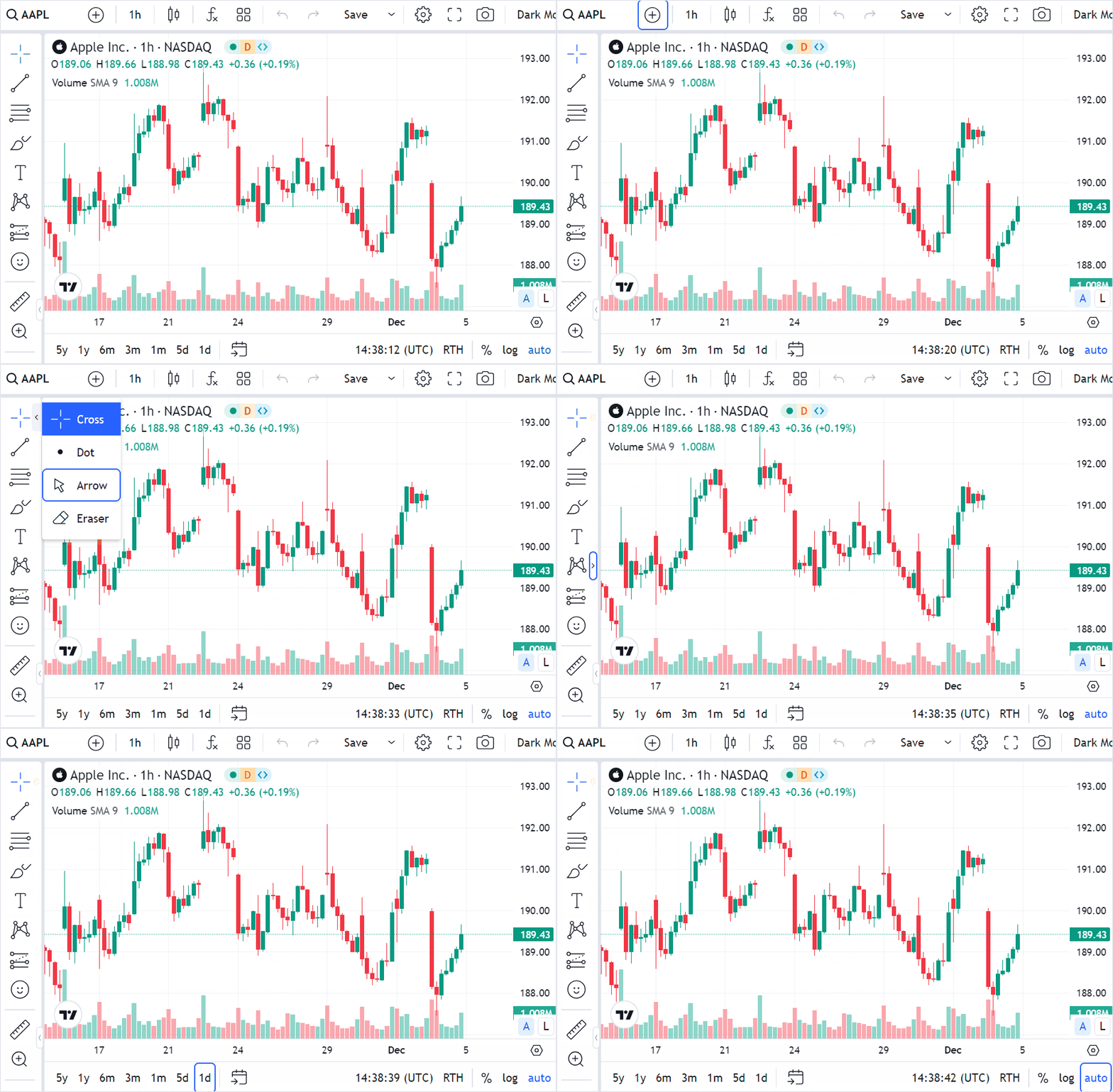
By default, users should press Alt + Z to start navigation. Alternatively, you can enable the accessible_keyboard_shortcuts featureset to start the navigation with Tab. In this case, the built-in shortcuts listed in the table below are also changed.
| Action | Default shortcut | accessible_keyboard_shortcuts |
|---|---|---|
| Start keyboard navigation | Alt + Z | Tab |
| Switch between charts | Tab | Shift + → |
| Switch between charts in reverse order | Shift + Tab | Shift + ← |
The library includes built-in shortcuts that allow users to perform actions in the UI. You can also add custom shortcuts. For more information, refer to Shortcuts.
Color and contrast
The default themes are designed to meet the WCAG 2.2 AA contrast requirements for most text and controls. Known exception in the default themes: the text on the Sell button (Trading Platform).
You can adjust any color with the Custom themes API, overrides, and custom CSS. Your own colors, themes, and CSS can change the contrast of the result, so make sure they still meet WCAG 2.2 AA. It requires a contrast ratio of at least 4.5:1 for text and 3:1 for icons and focus indicators.
You can also change the chart size and adjust fonts. For more information, refer to the Customization section.
Screen reader compatibility
The library supports the following screen readers.
To use a screen reader, users should download and enable it.
Touch screen readers, such as TalkBack on Android and VoiceOver on iOS, are not supported yet.
Enhanced descriptions
You can use the following options to improve how screen readers interpret chart data:
- To have the screen reader announce the price under the crosshair as it moves, enable the
aria_crosshair_price_descriptionfeatureset. English only. - To provide a comprehensive ARIA description when the active chart changes, enable the
aria_detailed_chart_descriptionsfeatureset. English only. - To replace the description that screen readers read when users select a chart with the Tab key, specify
custom_chart_description_function. Returnnullto keep the default description. You can use this function to provide descriptions in other languages.
Table view
Users can view chart and indicator data as a table. To open the table view, select Table view in the legend's More menu or in the chart context menu.
