חפש סקריפטים עבור "vwap"
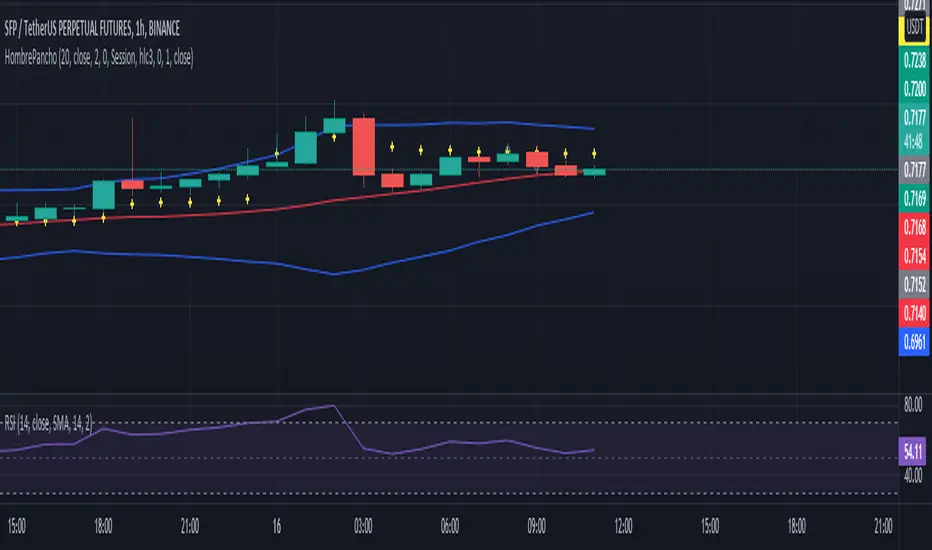
VWAP with 7EMA with ZonesThis is a script with 7 EMAs for every type of trades. This indicator also has the daily weekly and monthly zones. 20,50,100,200 EMAs being the best EMAs of all.
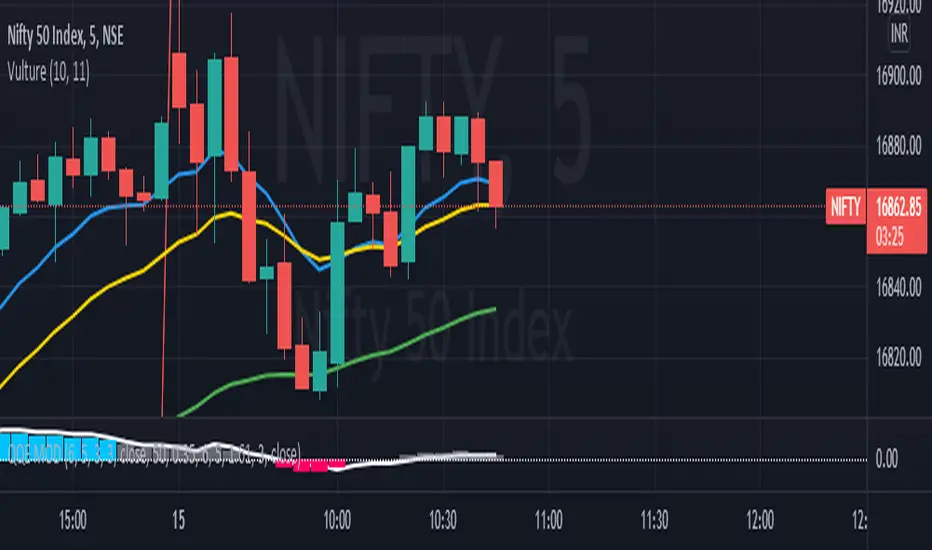

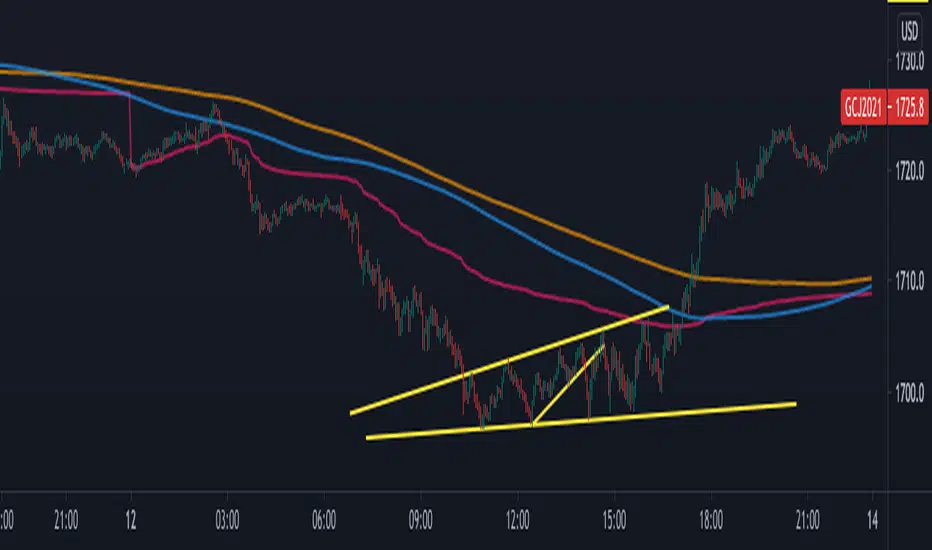
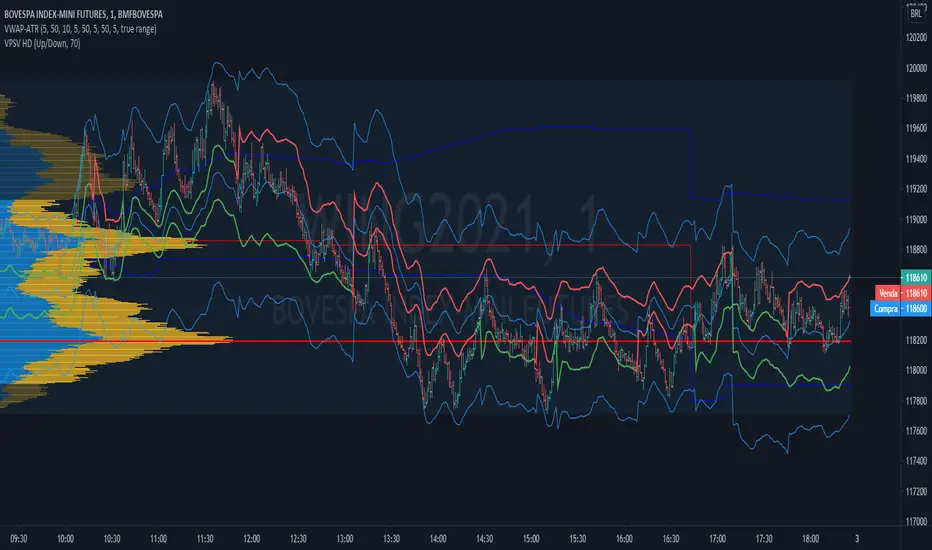
VWAP-ATR-SSLThis is an experimental idea to transform the original script created by @Fleite28 in a kind of SSL with volatility bands.
@Fleite28 has made all script and he have all credits, I just give him this idea.
I'm using this indicator to confirm:
1-potential bull trend (when you have 2x green lines with support)
2-potential bear trend (2x lines red - resistance)
3-consolidations (inside green support and red resistance).
Try to use this with a Market Profile Volume and some trend lines.
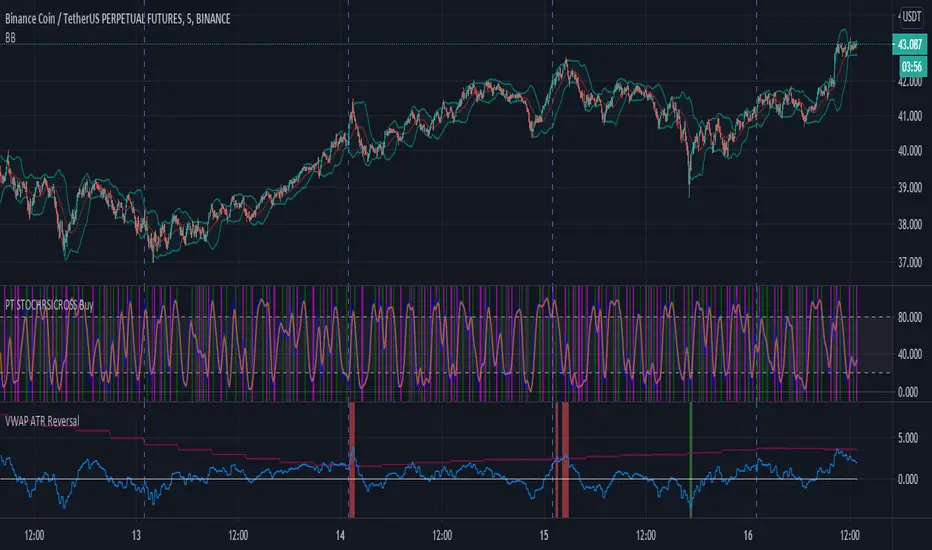
VWAP ATR ReversalThis script finds tops and bottoms using ATR and MVWAP. It works by signaling when price is far away from MVWAP and ATR therefore it is likely to reverse.
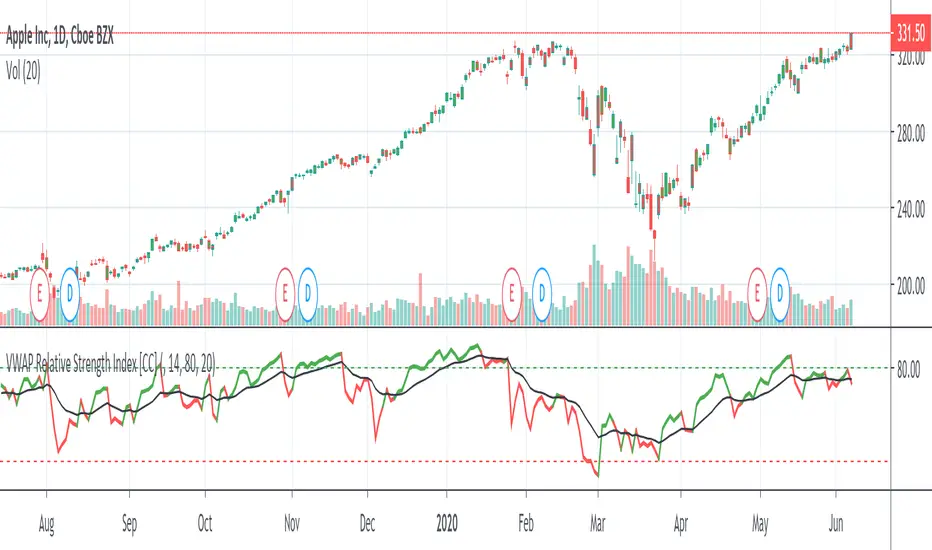
VWAP Relative Strength Index [CC]This is a custom indicator of mine that uses the volume weighted average price instead of the close price as the source for calculations of the relative strength index. Buy when the indicator line is green and sell when it is red.
This was a custom request so let me know if there are any other scripts you would like to see me do or if you want something custom done!


VWAP/CloseHey!
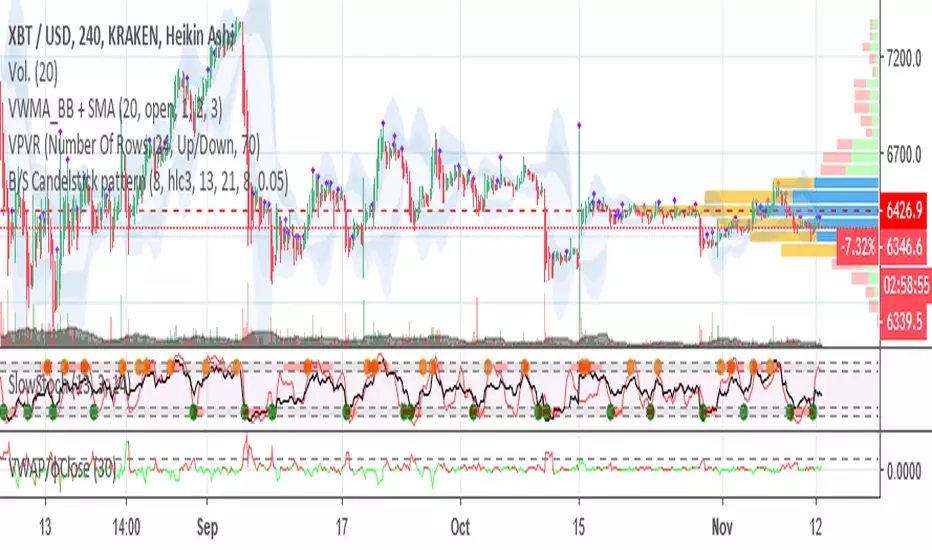
This time I'm going to introduce you to an indicator which catches volume spikes and its respect price change, to give an idea of the following price action.
The logic is pretty simple:
Value > 1 : High Volume that changed a lot the price, next price action will follow that trend.
Value < 1 : Low volume that changed a lot the price, trend is weak.
Value = 1 : Volume and price change is balanced, trend would continue based on the previous values.
If you have any doubt just comment!
φ

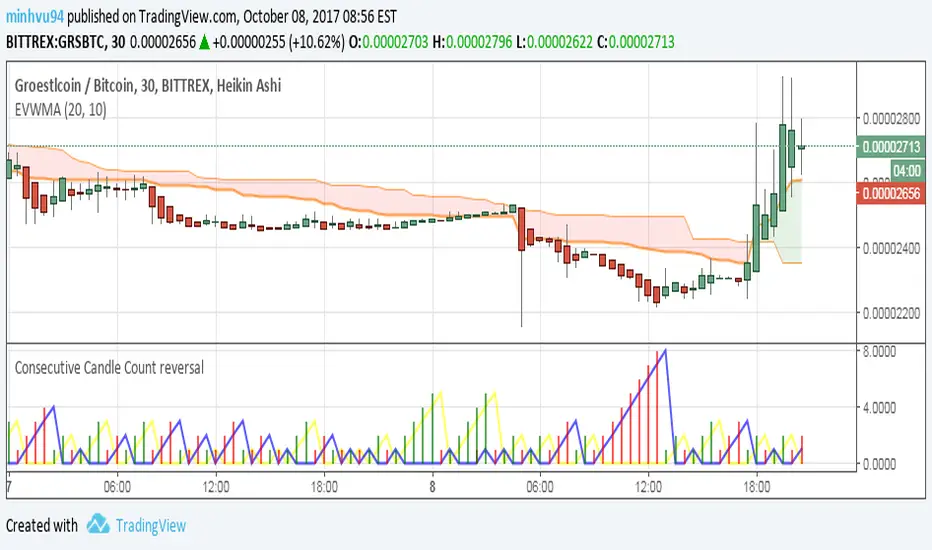
Ichimoku Cloud Laboratory [DAFE]Ichimoku Cloud Laboratory : The Ultimate All-In-One Trend & Equilibrium Engine
50+ Cloud Engines. Multi-Cloud Architecture. Advanced Signal Filtering. This is Not Just Ichimoku. This is the Evolution of Market Equilibrium.
█ PHILOSOPHY: BEYOND THE CLOUD, INTO THE LABORATORY
The Ichimoku Kinko Hyo is more than an indicator; it is a complete trading philosophy, a masterpiece of market analysis that provides an "at-a-glance" view of trend, momentum, and equilibrium. However, its core calculation—the simple midpoint of the high and low—was conceived in a pre-computer era. While brilliant, it is blind to the modern market's most critical force: the nuanced character of volume, volatility, and microstructure.
The Ichimoku Cloud Laboratory was not created to be another Ichimoku clone. It was engineered to be the definitive evolution of Goichi Hosoda's original vision. This is not just an indicator; it is a powerful, interactive research environment. It is a laboratory where you, the trader, can move beyond the static "one-size-fits-all" approach and forge an Ichimoku system that is perfectly synchronized with the unique physics of your market, timeframe, and analytical style.
We have deconstructed the very DNA of the Cloud, replacing its rigid 1930s-era calculation with a library of over 50 distinct, mathematically diverse calculation engines . From classical moving averages and advanced DSP filters to proprietary DAFE quantum models, this suite provides an unparalleled arsenal for visualizing the true, underlying architecture of market equilibrium.
█ WHAT MAKES THIS A "LABORATORY"? THE CORE INNOVATIONS
This tool stands in a class of its own. It is a collection of what could be 50 separate indicators, all seamlessly integrated into one powerful, unified engine.
The 50+ Algorithm Engine: This is the heart of the Laboratory. You are no longer bound by the simple Donchian midpoint. You can now swap the core calculation engine of the Tenkan-sen, Kijun-sen, and Senkou Span B with any of over 50 algorithms. Want a zero-lag, Hull MA-based cloud? A volume-weighted cloud that gravitates towards liquidity? A cloud that adapts its speed based on market entropy? You now have the power to construct it.
Multi-Cloud Architecture: This revolutionary feature allows you to stack up to three layers of the Ichimoku cloud on your chart, each calculated with a progressively longer timeframe multiplier. This transforms the flat, two-dimensional cloud into a rich, three-dimensional "heatmap" of support and resistance. You can instantly see the alignment (or conflict) between the short-term, medium-term, and long-term trends.
Advanced Signal Logic & Filtering: Go beyond the simple TK Cross. The Laboratory includes eight distinct, built-in signal strategies, from the classic "Kumo Breakout" to the high-conviction "Perfect Order." Crucially, you can then fortify these signals with a professional-grade filter module, requiring confirmation from Volume, ATR (volatility), or ADX (trend strength) before a signal is even considered valid.
Proprietary DAFE Engines: The crown jewels of the Laboratory. These are custom-built, proprietary algorithms you will not find anywhere else, designed to infuse the cloud with modern quantitative analysis:
DAFE Flux Reactor: A cloud that breathes with volatility, automatically tightening in squeezes and expanding in trends.
DAFE Tensor Cloud: Uses a 4-dimensional average (OHLC) to create a cloud that tracks the "true" center of price action.
DAFE Quantum Step: A noise-canceling cloud that only moves when price exceeds a volatility-based threshold.
DAFE Gravity Well: A volume-weighted cloud that is magnetically pulled towards high-liquidity zones.
Integrated Performance Engine & Dashboard: How do you know which of the 50+ engines is best? You test it. The built-in Performance Dashboard tracks every trade generated by your chosen configuration, while the main dashboard provides a comprehensive, at-a-glance summary of the entire Ichimoku system's current state.
█ A GUIDED TOUR OF THE ALGORITHMIC CORE
This is your library of mathematical DNA. The 50+ engines are your tools to build the perfect cloud.
THE ENGINE FAMILIES
The Classics (Hull MA, ZLEMA, KAMA, VIDYA): Replace the choppy Donchian midpoint with smooth, low-lag, or adaptive moving averages to create a more responsive and readable cloud.
The DSP & Quantitative Masters (SuperSmoother, Kalman, Gaussian, Laguerre): Employ advanced digital signal processing and statistical filtering to construct a cloud that is surgically precise in its separation of trend "signal" from market "noise."
The Volume-Based (VWMA, VWAP, Money Flow Weighted): Build a cloud that is not just based on price, but is weighted by participation. This creates a cloud that automatically respects high-liquidity zones as stronger levels of support and resistance.
The Adaptive Geniuses (ATR-Scaled, Volatility-Modulated, Efficiency Ratio, Entropy): These are "smart" engines that analyze the market's character—its volatility, trendiness, or disorder—and adapt the cloud's calculation in real-time. The result is a cloud that is stable in chop and dynamic in trends.
The DAFE Proprietary Engines: The pinnacle of cloud engineering. These exclusive algorithms allow you to build clouds based on principles of physics, institutional analysis, and quantum mechanics, creating a truly next-generation analytical tool.
█ STRATEGIC APPLICATION: FROM SIGNALS TO STRUCTURE
The Laboratory transforms Ichimoku from a simple signal generator into a complete market structure framework.
The Signal Logic: You are not limited to one strategy.
TK Cross: For classic momentum signals.
Kumo Breakout: For pure price action breakout strategies.
Perfect Order: The ultimate filter. By requiring Price > Cloud > Tenkan > Kijun, you filter for only the strongest, most established trends, eliminating the majority of false signals.
Cloud Twist: A forward-looking, predictive signal. The twist of the future cloud often pinpoints the exact timing of a potential trend reversal.
The Multi-Cloud Strategy: This is the professional's view. By enabling 3 Cloud Layers, you can see the market's fractal nature.
Layer 1 (Standard): Your short-term operational trend.
Layer 2 (e.g., 2x Periods): Your medium-term structural trend.
Layer 3 (e.g., 3x Periods): Your long-term macro trend.
The Strategy: Wait for price to pull back into the space between the 2nd and 3rd cloud layers—the "macro support/resistance zone"—and then take a signal from the 1st layer in the direction of the overall trend. This is a high-probability institutional setup.
█ THE MASTER DASHBOARD: YOUR "AT-A-GLANCE" COMMAND CENTER
The dashboard provides a comprehensive, real-time summary of the entire Ichimoku system's state.
Engine & Periods: Instantly confirm which of the 50+ engines and period settings are active.
Status Readout: Get an immediate, color-coded verdict on the three core Ichimoku components: Price vs. Cloud, the TK Cross, and the Future Cloud bias.
Momentum & Strength Gauge: A proprietary score that quantifies the overall bullish or bearish momentum of the system, and a "Strength" bar that visualizes the conviction of the current alignment.
Performance Data: If enabled, the dashboard will display your strategy's key performance metrics, including Win Rate, Profit Factor, and Net P&L.
█ DEVELOPMENT PHILOSOPHY
The Ichimoku Cloud Laboratory was born from a deep respect for Goichi Hosoda's original work and a relentless desire to push it into the 21st century. We believe that in modern markets, static tools are obsolete. The future of trading lies in adaptation, customization, and multi-dimensional analysis. This tool is for the serious trader, the systems thinker, the architect—the individual who is not content with a black box, but who seeks to understand, test, and refine their edge with surgical precision.
The Ichimoku Laboratory is designed to be the ultimate tool for that reaction, providing a crystal-clear, multi-layered view of what the market is telling you—not just through price, but through the very fabric of its equilibrium.
█ DISCLAIMER AND BEST PRACTICES
THIS IS AN ADVANCED ANALYTICAL TOOL: This indicator provides a sophisticated market structure and signal framework. It must be integrated into a complete trading plan that includes your own analysis and risk management.
RISK MANAGEMENT IS PARAMOUNT: All trading involves substantial risk. Never risk more capital than you are prepared to lose.
START WITH A ROBUST BASE: Begin with the "Traditional" preset and the "Standard Donchian" engine to master the classic feel. Then, experiment with a low-lag engine like the "Hull Moving Average" to see the immediate benefit of a smoother, more responsive cloud.
USE CONFLUENCE: The highest probability signals come from confluence. A "TK Cross" buy signal that occurs above a bullish "Multi-Cloud" structure, confirmed by a "Perfect Order" and high volume, is an A++ setup.
"The essence of success in the market is not forecasting, but reacting to what the market is telling you right now."
— J. Welles Wilder Jr.
Taking you to school. - Dskyz, Trade with Anticipation. Trade with Strength. Trade with RSI: Evolved

Stock ScreenerMissing great trade opportunities is annoying, and unless you have 12 screens or only trade one market, you are missing a lot of trades. To fix that, we created this stock screener so you get notified instantly of potential great trading conditions in real time, right on your chart.
You get notified of trading benchmarks being met by the value being displayed on the scanner as well as a color change so that it grabs your attention and makes you aware that you should take a look at the other market and look for a potential trade. It also has built in alerts so you can have an alert notification go off when any of your trading conditions are met instead of needing to watch the scanner for color changes.
The screener will change the ticker symbol background color to red green when price is above or below the previous daily range and above or below both VWAPs. This signals that the ticker is trending, which typically means it is a great time to trade that market and follow the trend.
This stock screener allows you to scan up to 10 different markets at the same time for various different conditions so you always know what is going on with your favorite trading symbols. If you want to scan more tickers, just add the indicator to your chart again and change the table position to the other side of the screen and update the tickers on the 2nd screener, allowing you to have 20 tickers at a time.
The scanner can be fully customized by changing the markets that it screens and turning on or off as many of them as you would like. You can also turn on or off any of the different data sets so that you only get information about trading conditions that matter to you.
The screener can provide data on any type of market, such as stocks, crypto, futures, forex and more. Each ticker can be adjusted to whatever market you would like it to scan for data in the settings panel, the only limitation is that it will not provide data for the VWAP and volume trend score if the ticker you are screening does not provide volume data.
Screener Features
The scanner will provide the following types of data for each ticker that is turned on:
Volume - Provides a volume score compared to the average volume and notifies you of higher than normal volume and volume spikes on individual bars by changing colors.
Volatility - Provides a volatility score compared to the average volatility and notifies you of higher than normal volatility by changing colors.
Oscillator - Choose between the RSI or CCI. The value of that oscillator will be displayed and will notify you when values are in extreme ranges such as overbought or oversold conditions according to the threshold values you enter in the settings panel. When those thresholds have been breached, you will be notified by it changing color.
Big Candles - Compares the current candle to average previous candle sizes, and changes color to notify you of big candles including a big top wick, big bottom wick, big candle body and big candle high to low range.
Daily Level Touches & Trends - Calculates and displays various daily candle and intraday open price levels that act as support and resistance. Notifies you when price is touching any of the daily levels that are turned on. The levels you can have on are as follows: previous day high, previous day low or previous day open. It also will notify you when price is touching the current day’s open, NY 930am open, Asia 8pm open, London 2am open and NY midnight 12am open. It will also say “Above” if price is above the previous day’s high or it will say “Below” if price is below the previous day’s low. The color of the cell will also change when a level touch is happening or price is above the previous day high or below the previous day low.
VWAP - Choose from 2 different VWAP lengths, default settings are daily and weekly VWAPs. You will get notified if price touches either of the VWAPs and they will also say “Above” or “Below” if price is currently above or below each VWAP.
How To Use The Screener To Help You Trade
The main purpose of the screener is to scan other markets and notify you of potential good trading opportunities such as price bouncing off of the daily levels or VWAPs. It can also be used to know when price is trending according to the VWAPs and daily levels. Lastly, you can use it to know how the volume and volatility trends are currently which gives you more confidence in taking a trade with this data when volume and volatility are present.
Volume Score
When volume is high, this represents a good time to trade because there are many market participants and price is likely to be volatile while there is high volume which can present a lot of good trade setups for you to take.
The volume score shown on the screener measures the current volume trend compared to previous volume trends and calculates that into a score based on 100 being the same as the previous volume trend. So any value above 100 means it is high volume and any value less than 100 means it is lower volume than normal.
In the settings panel, you can adjust the volume threshold that needs to be met for a volume notification to show up. The default setting is at 120, so you will get notified when the current volume trend score is 120 or higher or you can adjust that threshold value to whatever value you prefer.
It also will notify you when there is a volume spike on the current bar. This is determined by calculating an average of the recent volume totals and then checking to see if the current bar is greater than or equal to that average multiplied by 3. So if a single bar has volume that is greater than 3 times what the average volume is, then you will get a notification that says “Spike” to make you aware of that volume spike.
The volume trend threshold, volume spike multiplier and lookback length for the average volume used in volume spike calculations can all be adjusted in the settings panel to fit your desired preferences.
Volatility Score
High volatility can mean it is a great time to trade because the market is moving quickly and providing large enough movements that you can get in and out in a short amount of time, while still accruing decent sized trade PnL.
The volatility score will calculate the current volatility for each market compared to previous conditions and then divide the current volatility by the average volatility to give you a volatility score. Anything over 100 means the market is decently volatile and you should look at that market to find potential trade setups to execute on. Anything below 100 means the market is not very volatile and it is usually best to just wait until volatility returns before you start trading again.
The screener will notify you when the volatility score is above the threshold you set. The default value is set to 90, but can be adjusted to your preference. Pay attention to any market that shows an alert and take a look at that chart because the high volatility may present a good trade setup for you in the near future.
Oscillator Score
The oscillator data can be switched between Relative Strength Index(RSI) and Commodity Channel Index(CCI).
The RSI provides a value between 0 and 100 that indicates the momentum and strength of the recent price action. Many traders use the extremes of the 0-100 range to signal overbought or oversold conditions and use that as a sign to look for price to reverse in the near future. The typical values used for this and the default settings to provide notifications are: 70 for overbought and 30 for oversold. The scanner will notify you when the RSI value is considered overbought or oversold so you know to take a look at the chart and analyze if it is ready for a trade to be taken.
The CCI provides a value that can be used to determine the trend strength of the underlying asset when the oscillator moves above 100 or below -100. These extreme values are outside of the normal accumulation range and signify that price is moving strongly in that direction so it may be a good time to take a trade in the direction of the trend. The scanner will show you the value of the CCI for each market and notify you if that value is above 100 or below -100.
Both RSI and CCI settings can be adjusted in the settings panel to your desired settings so you have the exact oscillator settings you prefer to use as well as the exact values that you want to use for being notified.
Big Candles
Big candles can mean that many traders are buying or selling at the same time and many times indicate a good signal to trade in that same direction. That is why we included this calculation in the screener, so you are always aware when a large candle prints.
It calculates the average size of the recent candles and then uses that average as the benchmark to determine if the current candle is considered big and worthy of notifying you to take a look at that chart.
You can adjust the multiplier used for the big candle threshold to whatever you desire, but the default setting is 3 which means the candle will be considered big and notify you if it is 3 times as large as an average candle.
The big candles data will track the following candle values and notify you with these labels:
High to Low candle size = HL
Candle Body from open to close candle size = OC
Top Wick size = TW
Bottom Wick size = BW
Daily Level Touches & Trend
Daily level touches are excellent levels to watch for price to bounce because they often act as support and resistance levels for intraday trading. The scanner will track each market and notify you when the current candle is touching any of the daily levels that you have turned on in the settings panel.
The main levels that are turned on by default and are useful for all markets and how they will be labeled on the scanner are as follows:
Previous Day High = High
Previous Day Low = Low
Previous Day Open = < Open
Previous Day Close = Close
Current Day Open = Open
We also included some extra levels that are useful for futures traders. They are as follows:
NY 930am Open = 930am
NY 12am Midnight Open = 12am
Asia Open at 8pm NY time = Asia
London Open at 2am NY Time = London
Watch how price reacts to these levels and then trade the bounces off of these levels if the price action confirms that it is going to respect that level.
When price is currently above the previous day high, the scanner will say “Above” and show a green color, indicating a bullish trend and that price is above the previous daily candle’s high.
When price is currently below the previous day low, the scanner will say “Below” and show a red color, indicating a bearish trend and that price is below the previous daily candle’s low.
Pay attention to when price is trending above or below the previous daily candle as those trends can provide excellent trend trading opportunities.
The daily levels that you have turned on in the settings will also show as lines on the chart and include a label next to them, identifying each level so you know what each line represents. You can turn on or off all of the lines shown on the chart in the main settings or turn them off one by one in the style panel of the settings. Labels can also be turned on or off for all of the lines in the main settings panel. You can adjust the label positioning in the Label Offset section of the settings panel.
VWAP Touches & Trend
VWAP stands for volume weighted average price and is a very popular tool that traders use to determine trend direction based on volume as well as an excellent level to trade price bounces off of.
The typical VWAP time period used is Daily, which means the volume weighted average price will reset at the beginning of a new day. We set the first VWAP to be the daily VWAP by default and the second one to be the weekly VWAP. You can adjust both of the time periods to be any of the provided time lengths that you choose.
The screener will show “Above” with a green background color when price is above the VWAP, indicating a bullish trend. It will show “Below” with a red background color when price is below the VWAP, indicating a bearish trend. When both VWAPs are showing Above or Below, you can expect price to trend in that direction, so look for pullbacks you can trade in the direction of the trend. If the VWAPs are showing different directions, then you should expect to bounce back and forth between the VWAPs, but be careful and watch out for price to break beyond either one and start a trend.
When the current candle is touching the VWAP, the scanner will change colors and say VWAP to notify you that price is touching the VWAP and you should look at that chart and analyze the market for a potential bounce off of the VWAP to trade.
Trending Market Signals
Strong trends are excellent markets to trade and can many times provide excellent trading opportunities that don’t require expert price action reading skills to be able to take winning trades from. That is why we included a signal to notify you of a strong trending market.
The strong trending market will show up as a green or red background color for the ticker name. If the color of the ticker name is green, it is notifying you that the price is above the previous daily high, above VWAP 1 and above VWAP 2 and is a good market to look for bullish trend trades. If the color of the ticker name is red, it is notifying you that the price is below the previous daily low, below VWAP 1 and below VWAP 2 and is a good market to look for bearish trend trades.
Changing The Tickers It Scans
To change the tickers that the indicator scans, scroll near the bottom of the settings panel and select the ticker symbol you want to update and then search for the exact symbol you want to use. If you want to scan less tickers, then just turn some of the tickers off that you don’t need.
Scanning More Than 10 Tickers
If you want to scan more than 10 tickers, you can add the scanner to your chart again and then just change the table position to the other side of the screen. This will allow you to scan 10 more tickers that will show up separately. Then if you want even more, just add the indicator to your chart again and update the table position until you have as many markets as you want. The table position setting can be found at the bottom of the main settings panel.
Alerts
The screener has alerts that can be used to notify you when any of the data set thresholds have been met or if price is touching one of the levels. You can set alerts for the following events:
Bullish Trend Alert - Price is above the previous daily high and above both VWAPs.
Bearish Trend Alert - Price is below the previous daily low and below both VWAPs.
High Volume Alert - Volume is higher than the threshold or a volume spike is detected.
High Volatility Alert - Volatility is higher than the threshold.
Oscillator Is Extended Alert - Oscillator value has exceeded the upper or lower threshold.
Big Candle Alert - A big candle has been detected.
Daily Level Touch Alert - One of the daily levels that is turned on is being touched.
VWAP Touch Alert - One of the 2 VWAPs are being touched.
An alert will trigger when any one of tickers on your scanner meets the alert conditions, so when you see the alert, you will need to go to your chart and look at the scanner to see which ticker it was and then navigate to that chart to look for potential trade setups.
The alerts will use the exact same settings you have configured in the settings panel to send you alert notifications. With normal settings, this could give you a lot of alerts, so if you only want alerts to fire when abnormal conditions are being met, try setting up a second screener on your chart that has very high threshold values and only has the most important level touches on. Then turn the setting "Do Not Show The Screener On The Chart" to off so the calculations will still run and fire alerts, but won't clog up your charts. This way you can only get alert notifications when major events happen but still have your normal screener settings available on your chart.
Markets This Can Be Used On
This screener uses the price action and volume data so you can use it to scan any type of market you would like as long as the ticker you are scanning has price and volume data feeds. If a market does not have volume data, then it will just show NaN in the volume row and the VWAP rows will not show anything.

Day’s Open ForecastOverview
This Pine Script indicator combines two primary components:
1. Day’s Open Forecast:
o Tracks historical daily moves (up and down) from the day’s open.
o Calculates average up and down moves over a user-defined lookback period.
o Optionally includes standard deviation adjustments to forecast potential intraday levels.
o Plots lines on the chart for the forecasted up and down moves from the current day's open.
2. Session VWAP:
o Allows you to specify a custom trading session (by time range and UTC offset).
o Calculates and plots a Volume-Weighted Average Price (VWAP) during that session.
By combining these two features, you can gauge potential intraday moves relative to historical behavior from the open, while also tracking a session-specific VWAP that can act as a dynamic support/resistance reference.
How the Code Works
1. Collect Daily Moves
o The script detects when a new day starts using time("D").
o Once a new day is detected, it stores the previous day’s up-move (dayHigh - dayOpen) and down-move (dayOpen - dayLow) into arrays.
o These arrays keep track of the last N days (default: 126) of up/down move data.
2. Compute Statistics
o The script computes the average (f_average()) of up-moves and down-moves over the stored period.
o It also computes the standard deviation (f_stddev()) of up/down moves for optional “forecast bands.”
3. Forecast Lines
o Plots the current day’s open.
o Plots the average forecast lines above and below the open (Avg Up Move Level and Avg Down Move Level).
o If standard deviation is enabled, plots additional lines (Avg+StdDev Up and Avg+StdDev Down).
4. Session VWAP
o The script detects the start of a user-defined session (via input.session) and resets accumulation of volume and the numerator for VWAP.
o As each bar in the session updates, it accumulates volume (vwapCumulativeVolume) and a price-volume product (vwapCumulativeNumerator).
o The session VWAP is then calculated as (vwapCumulativeNumerator / vwapCumulativeVolume) and plotted.
5. Visualization Options
o Users can toggle standard deviation usage, historical up/down moves plotting, and whether to show the forecast “bands.”
o The vwapSession and vwapUtc inputs let you adjust which session (and time zone offset) the VWAP is calculated for.
________________________________________
How to Use This Indicator on TradingView
1. Create a New Script
o Open TradingView, then navigate to Pine Editor (usually found at the bottom of the chart).
o Copy and paste the entire code into the editor.
2. Save and Add to Chart
o Click Save (give it a relevant title if you wish), then click Add to chart.
o The indicator will appear on your chart with the forecast lines and VWAP.
o By default, it is overlayed on the price chart (because of overlay=true).
3. Customize Inputs
o In the indicator’s settings, you can:
Change lookback days (default: 126).
Enable or disable standard deviation (Include Standard Deviation in Forecast?).
Adjust the standard deviation multiplier.
Choose whether to plot bands (Plot Bands with Averages/StdDev?).
Plot historical moves if desired (Plot Historical Up/Down Moves for Reference?).
Set your custom session and UTC offset for the VWAP calculation.
4. Interpretation
o “Current Day Open” is simply today’s open price on your chart.
o Up/Down Move Lines: Indicate a potential forecast based on historical averages.
If standard deviation is enabled, the second set of lines acts as an extended range.
o VWAP: Helpful for determining intraday price equilibrium over the specified session.
Important Notes / Best Practices
• The script only updates the historical up/down move data once per day (when a new day starts).
• The VWAP portion resets at the start of the specified session each day.
• Standard deviation multiplies the average up/down range, giving you a sense of “volatility range” around the day’s open.
• Adjust the lookback length (dayCount) to balance how many days of data you want to average. More days = smoother but possibly slower to adapt; fewer days = more reactive but potentially less reliable historically.
Educational & Liability Disclaimers
1. Educational Disclaimer
o The information provided by this indicator is for educational and informational purposes only. It is a technical analysis tool intended to demonstrate how to use historical data and basic statistics in Pine Script.
2. No Financial Advice
o This script does not constitute financial or investment advice. All examples and explanations are solely illustrative. You should always do your own analysis before making any investment decisions.
3. No Liability
o The author of this script is not liable for any losses or damages—monetary or otherwise—that may occur from the application of this script.
o Past performance does not guarantee future results, and you should never invest money you cannot afford to lose.
By adding this indicator to your TradingView chart, you acknowledge and accept that you alone are responsible for your own trading decisions.
Enjoy using the “Day’s Open Forecast” and Session VWAP for better market insights!

CoreLibrary "Core"
inRTH()
gapFlags(prevDayClose, gapPct)
Parameters:
prevDayClose (float)
gapPct (float)
gapInfo(prevClose)
Parameters:
prevClose (float)
relativeVolume(len)
Parameters:
len (int)
barSeconds()
barSecondsOpt(rthSecondsDefault)
Parameters:
rthSecondsDefault (int)
relVolRealtime(len)
Parameters:
len (int)
mtfAlign(htfEma, tol)
Parameters:
htfEma (float)
tol (float)
htfDistanceAbs(htfEma, fallback)
Parameters:
htfEma (float)
fallback (float)
mtfState(htfEma, tol)
Parameters:
htfEma (float)
tol (float)
adaptiveLength(rocLen, minSmooth, maxSmooth, useAdaptive, baseSmoothing, speedLookback)
Parameters:
rocLen (int)
minSmooth (int)
maxSmooth (int)
useAdaptive (bool)
baseSmoothing (int)
speedLookback (int)
adaptiveTrend(src, adaptiveLen)
Parameters:
src (float)
adaptiveLen (float)
atrBands(atrLen, atrMult, basis)
Parameters:
atrLen (simple int)
atrMult (float)
basis (float)
calcTrendStrength(closePrice, fastEMA, slowEMA, volumeConfirmed, speedConfirmed)
Parameters:
closePrice (float)
fastEMA (float)
slowEMA (float)
volumeConfirmed (bool)
speedConfirmed (bool)
calcMovementPotential(inExpansionZone, trendStrength, speedConfirmed)
Parameters:
inExpansionZone (bool)
trendStrength (int)
speedConfirmed (bool)
combineSignalScore(trendStrength, movementPotential, mtfBonus, volumeSurgeBonus)
Parameters:
trendStrength (int)
movementPotential (int)
mtfBonus (int)
volumeSurgeBonus (int)
strength10(dirLong, volRatio, htfDistance, isTraditional, isAltPattern, bodySize, rsi)
Parameters:
dirLong (bool)
volRatio (float)
htfDistance (float)
isTraditional (bool)
isAltPattern (bool)
bodySize (float)
rsi (float)
sessionProfile()
microstructure(lookback)
Parameters:
lookback (int)
normalizePressure(pressure, lookback)
Parameters:
pressure (float)
lookback (int)
tickPressureNorm(lb)
Parameters:
lb (int)
zscore(x, lb)
Parameters:
x (float)
lb (int)
tickPressureZ(lb)
Parameters:
lb (int)
strength10DayTrade(dirLong, volRatio, htfDistance, isTraditional, isAltPattern, bodySize, rsi, sessionBonus, tickPressure)
Parameters:
dirLong (bool)
volRatio (float)
htfDistance (float)
isTraditional (bool)
isAltPattern (bool)
bodySize (float)
rsi (float)
sessionBonus (bool)
tickPressure (float)
vwapBands(vwap, length)
Parameters:
vwap (float)
length (int)
vwapChop(vwap, dev, atrPct, rsi)
Parameters:
vwap (float)
dev (float)
atrPct (float)
rsi (float)
calcRiskReward(entry, stop, tp1, tp2, tp3, shares)
Parameters:
entry (float)
stop (float)
tp1 (float)
tp2 (float)
tp3 (float)
shares (float)
squeezeBBKC()
marketRegime(lookback)
Parameters:
lookback (int)
squeezeBucket(ratio)
Parameters:
ratio (float)
dynamicCooldown(baseBars, atrPct, inChop, maxBars)
Parameters:
baseBars (int)
atrPct (float)
inChop (bool)
maxBars (int)
vwapMode(inChop)
Parameters:
inChop (bool)
toPctStr(x)
Parameters:
x (float)
yesNo(b)
Parameters:
b (bool)
trendLabel(state)
Parameters:
state (int)
minRByPct(price, pct)
Parameters:
price (float)
pct (float)
vwapChopScore(vwap, dev, atrPct, rsi)
Parameters:
vwap (float)
dev (float)
atrPct (float)
rsi (float)
strengthGateSuggest(isQualityTime, inChop, baseGate)
Parameters:
isQualityTime (bool)
inChop (bool)
baseGate (int)
cooldownReason(atrPct, inChop)
Parameters:
atrPct (float)
inChop (bool)
readyGates(isQualityTime, inChop, relVol, atrPct, baseGate)
Parameters:
isQualityTime (bool)
inChop (bool)
relVol (float)
atrPct (float)
baseGate (int)
readyVerdict(isLong, mtfStateVal, relVol, atrPercent, strengthScore, strengthGate)
Parameters:
isLong (bool)
mtfStateVal (int)
relVol (float)
atrPercent (float)
strengthScore (int)
strengthGate (int)
structuralStops(isLong, sigLow, sigHigh, vwap, dev, atr, stopBufAtr)
Parameters:
isLong (bool)
sigLow (float)
sigHigh (float)
vwap (float)
dev (float)
atr (float)
stopBufAtr (float)
emaSlopePct(ema, bars)
Parameters:
ema (float)
bars (int)
atrPct(len)
Parameters:
len (simple int)
cooldownStatus(lastSigBar, cooldownBars)
Parameters:
lastSigBar (int)
cooldownBars (int)
emaSlopeSign(ema, bars)
Parameters:
ema (float)
bars (int)
barProgress()
rthMarkers()
badge(ok)
Parameters:
ok (bool)
triBadge(x)
Parameters:
x (int)
priceAcceptanceAdaptive(minBodyFrac)
Parameters:
minBodyFrac (float)
speedConfirmed(rocLen, emaLen, smaLen)
Parameters:
rocLen (int)
emaLen (simple int)
smaLen (int)
setupScore(isLoose, isNormal, vwapTrend, emaUp, mtfBull, relVolOK, microOK, cooldownOK)
Parameters:
isLoose (bool)
isNormal (bool)
vwapTrend (bool)
emaUp (bool)
mtfBull (bool)
relVolOK (bool)
microOK (bool)
cooldownOK (bool)
setupTier(score)
Parameters:
score (int)
setupQuality(score)
Parameters:
score (int)
setupQualityColor(score)
Parameters:
score (int)
setupScoreDir(isLong, isLoose, isNormal, vwapTrend, emaUp, mtfBull, relVolOK, priceAccept, tickNorm, cooldownOK)
Parameters:
isLong (bool)
isLoose (bool)
isNormal (bool)
vwapTrend (bool)
emaUp (bool)
mtfBull (bool)
relVolOK (bool)
priceAccept (bool)
tickNorm (float)
cooldownOK (bool)
setupScoresBoth(isLoose, isNormal, vwapTrend, emaUp, mtfBull, relVolOK, priceAccept, tickNorm, cooldownOK)
Parameters:
isLoose (bool)
isNormal (bool)
vwapTrend (bool)
emaUp (bool)
mtfBull (bool)
relVolOK (bool)
priceAccept (bool)
tickNorm (float)
cooldownOK (bool)
ruleGatesDir(isLong, squeezeTight, emaUp, vwapTrend, relVol, relVolThresh, tickNorm, useSqzGate, useEmaGate, useVwapGate, useVolGate, useMicroGate)
Parameters:
isLong (bool)
squeezeTight (bool)
emaUp (bool)
vwapTrend (bool)
relVol (float)
relVolThresh (float)
tickNorm (float)
useSqzGate (bool)
useEmaGate (bool)
useVwapGate (bool)
useVolGate (bool)
useMicroGate (bool)
ruleGates(squeezeTight, emaUp, vwapTrend, relVol, relVolThresh, tickNorm, useSqzGate, useVwapGate, useVolGate, useMicroGate)
Parameters:
squeezeTight (bool)
emaUp (bool)
vwapTrend (bool)
relVol (float)
relVolThresh (float)
tickNorm (float)
useSqzGate (bool)
useVwapGate (bool)
useVolGate (bool)
useMicroGate (bool)
arrowColor(bucket, baseColor, useRegimeColor)
Parameters:
bucket (string)
baseColor (color)
useRegimeColor (bool)
orbHiLo(minutes)
Parameters:
minutes (int)
prevDayHL()
